Building Custom Artisan Commands
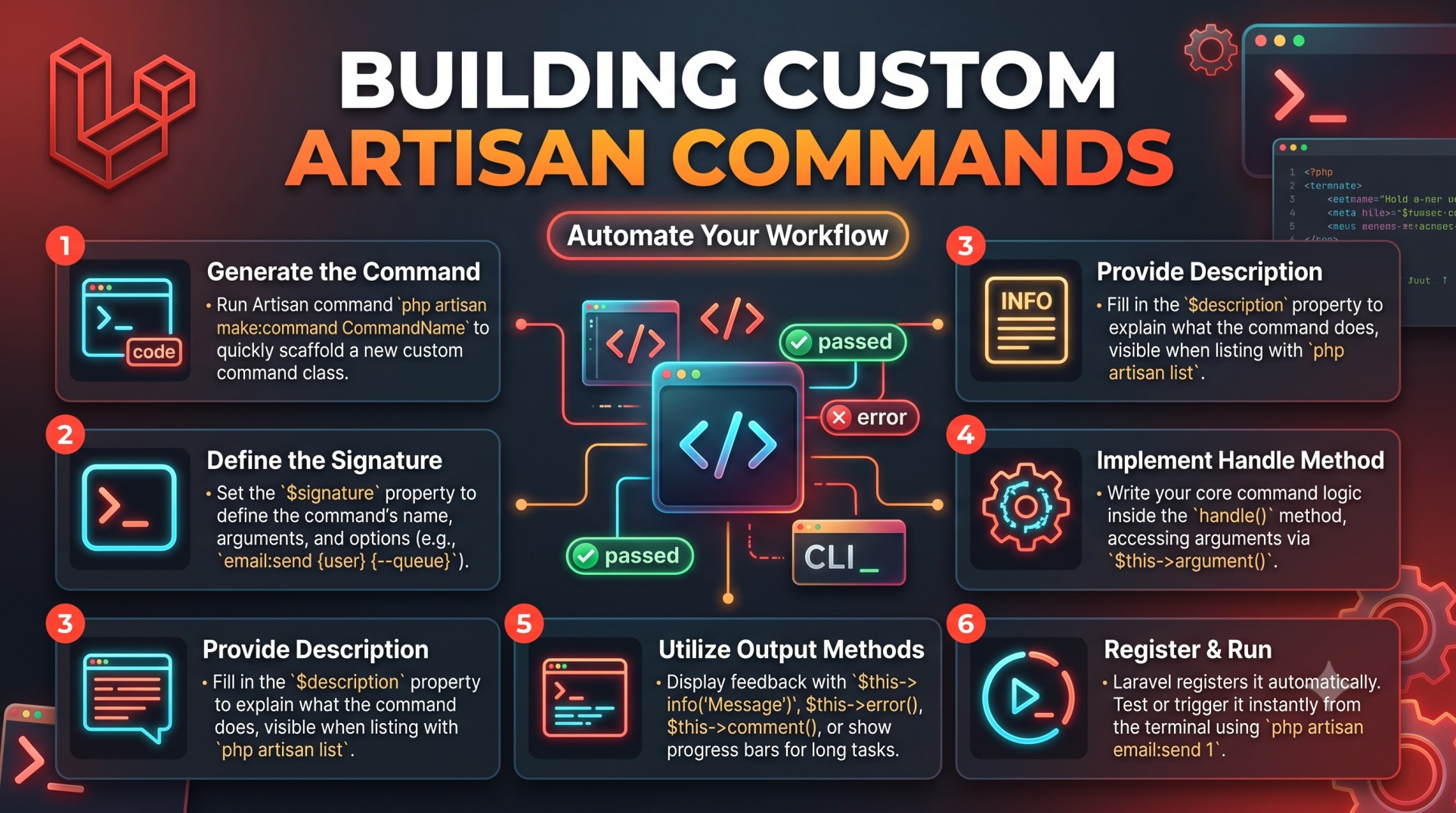
Laravel’s Artisan command-line interface (CLI) is one of the framework’s most powerful and developer-friendly features. It allows you to automate repetitive tasks, manage your application, and streamline development. While Laravel ships with a variety of built-in Artisan commands—like make:model, migrate, or serve—you can also create your own custom Artisan commands tailored to your project’s specific needs.
In this blog, we’ll explore how to build, structure, and use custom Artisan commands effectively. You’ll also learn advanced techniques to make your commands more dynamic, interactive, and reusable.
What is Artisan in Laravel?
Artisan is Laravel’s command-line interface that helps developers perform common tasks quickly. Whether you’re running migrations, clearing cache, or generating controllers, Artisan automates many development processes.
You can view all available commands by running:
This will display a categorized list of commands that come pre-installed with Laravel, along with any custom ones you create later.
Why Create Custom Artisan Commands?
While built-in commands cover most use cases, there are situations where creating your own can save significant time. Here are a few examples:
-
Automating repetitive tasks: Tasks like importing data, cleaning up old records, or sending scheduled emails.
-
Running batch operations: Processing large datasets or reports.
-
Maintenance scripts: Backing up files, clearing caches, or updating statuses.
-
Custom workflows: Creating new data structures, seeding external APIs, or generating reports automatically.
In short, custom commands help you extend Laravel’s CLI to fit your application’s exact requirements.
Creating a Custom Artisan Command
Laravel makes it simple to create new commands using Artisan itself. You can generate a new command with the following command:
This creates a new file in the app/Console/Commands directory. The generated class includes boilerplate code that you can customize according to your needs.
The main structure of a command includes:
-
Signature: Defines the name and parameters of the command.
-
Description: Provides a short explanation shown in the
php artisan list. -
Handle method: Contains the logic that executes when the command runs.
Example structure:
When you run php artisan report:generate, the code in your handle() method will execute.
Registering Custom Commands
After creating your command, Laravel automatically registers it in the app/Console/Kernel.php file inside the commands array.
If it’s not auto-registered, you can manually add it:
Once registered, you can test your command directly from the terminal:
Adding Arguments and Options
To make commands dynamic, you can define arguments and options in the $signature property.
Arguments
Arguments are required or optional values that a command needs to function. Example:
You can access the argument in your handle() method:
Options
Options are prefixed with -- and allow you to add flexibility. Example:
You can access it like this:
Now, when running your command, you can specify the report type:
Combining arguments and options makes your commands more powerful and reusable.
Displaying Output in the Console
A good Artisan command should provide clear feedback. Laravel offers several methods to display information:
-
$this->info('Process completed successfully!'); -
$this->error('Something went wrong.'); -
$this->warn('Warning: check your settings.'); -
$this->line('This is a standard message.');
You can also use tables and progress bars for more visual feedback, which is useful for long-running tasks.
Displaying Tables
You can display formatted data in table form:
Using Progress Bars
Progress bars are ideal for tracking the status of large tasks like file imports:
These interactive tools enhance the developer experience when running commands.
Scheduling Custom Commands
Laravel’s task scheduling system allows you to run commands automatically at defined intervals without using cron jobs directly.
Open app/Console/Kernel.php and use the schedule() method:
This command will automatically run every day at 8 AM.
You can schedule commands to run hourly, weekly, or even on specific days. Laravel also supports conditions, so you can run tasks only when certain criteria are met.
Handling Long-Running Commands
When creating commands that handle large datasets or API calls, it’s important to manage resources effectively. Here are some tips:
-
Use chunking: Process large datasets in smaller batches using
chunk()to avoid memory overload. -
Implement logging: Record progress and errors in log files using Laravel’s built-in logging system.
-
Leverage queues: Offload heavy operations to the queue system for better performance and reliability.
-
Graceful termination: Handle unexpected failures using try-catch blocks and error notifications.
Making Interactive Commands
Laravel allows your commands to interact with users during execution. This is useful for commands that require user confirmation or input.
Asking Questions
Confirming Actions
Secret Inputs
For sensitive inputs like passwords, you can use:
These features make commands more dynamic and user-friendly.
Organizing and Maintaining Commands
As your application grows, you might end up with dozens of Artisan commands. To keep things organized:
-
Group similar commands in subdirectories (e.g.,
Reports,Maintenance,Sync). -
Use consistent naming conventions.
-
Add meaningful descriptions for each command.
-
Document the expected arguments and options in comments or README files.
Real-World Use Cases for Custom Commands
Custom Artisan commands can be applied to many scenarios, including:
-
Data cleanup: Automatically deleting outdated or unused records.
-
Notifications: Sending periodic reminders or reports via email.
-
API synchronization: Fetching and updating external API data daily.
-
Backup management: Creating and rotating backups on schedule.
-
Performance monitoring: Generating reports or logs for system health.
These use cases show how flexible and practical custom commands can be in real projects.
Best Practices for Custom Artisan Commands
-
Keep commands modular: Each command should have a single responsibility.
-
Use dependency injection: For cleaner and testable code.
-
Handle errors gracefully: Always catch exceptions and log them.
-
Avoid hardcoding values: Use configuration files or environment variables.
-
Test commands thoroughly: Use Laravel’s built-in testing tools to ensure reliability.
Conclusion
Building custom Artisan commands is one of the most effective ways to automate processes and enhance productivity in Laravel development. Whether you’re scheduling daily reports, managing large data imports, or building maintenance scripts, custom commands give you the flexibility to extend Laravel’s CLI to your unique workflow.
By mastering Artisan commands, you can save hours of manual effort, improve consistency, and make your Laravel application more scalable and maintainable. The next time you find yourself repeating the same task, consider turning it into an Artisan command—your future self will thank you!


